Allow Permissions for Fluss Intercom

Allow Permissions for Fluss Intercom

If you happen to deny permissions for the Fluss.me intercom website.

You can refer to this guide to allow permissions for Camera and Microphone.

Select your browser:
Chrome
1. Select the three dots on the top right


2. Select the info button


3. Select Permissions


4.  Enable Permissions
 

Safari
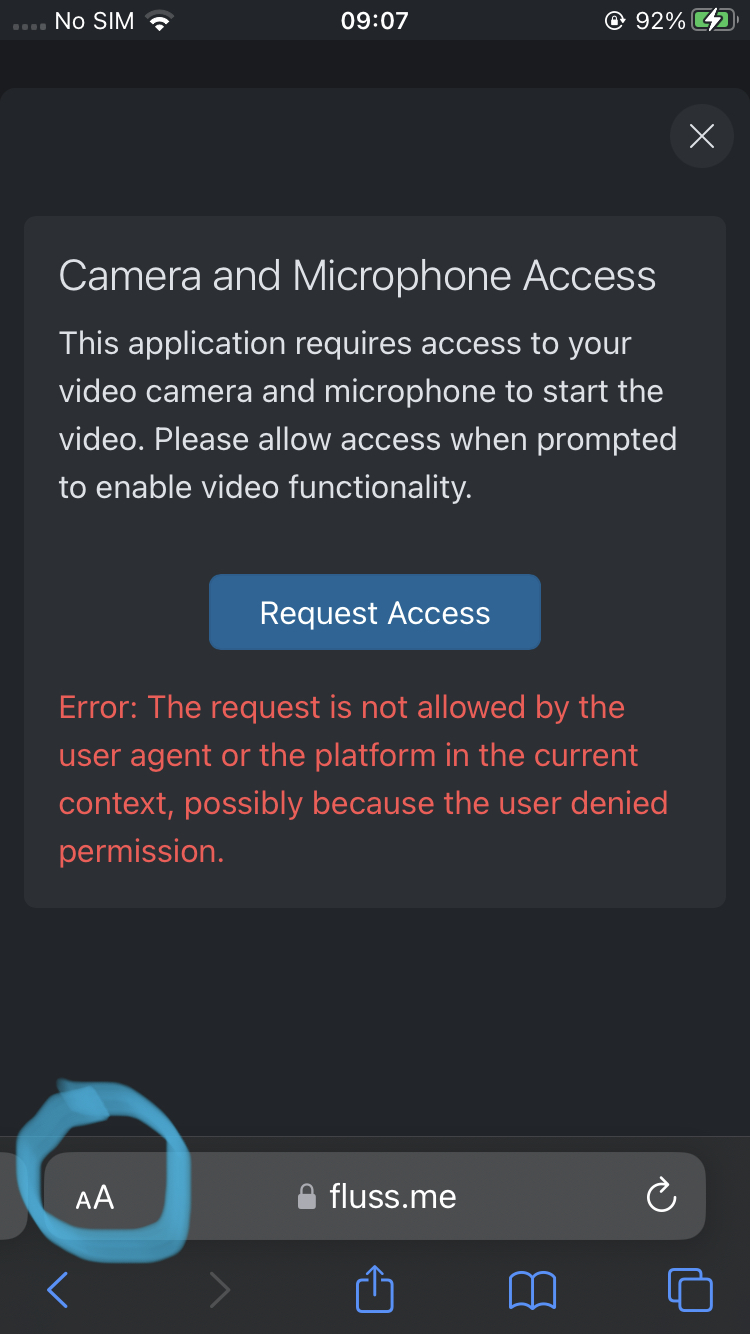
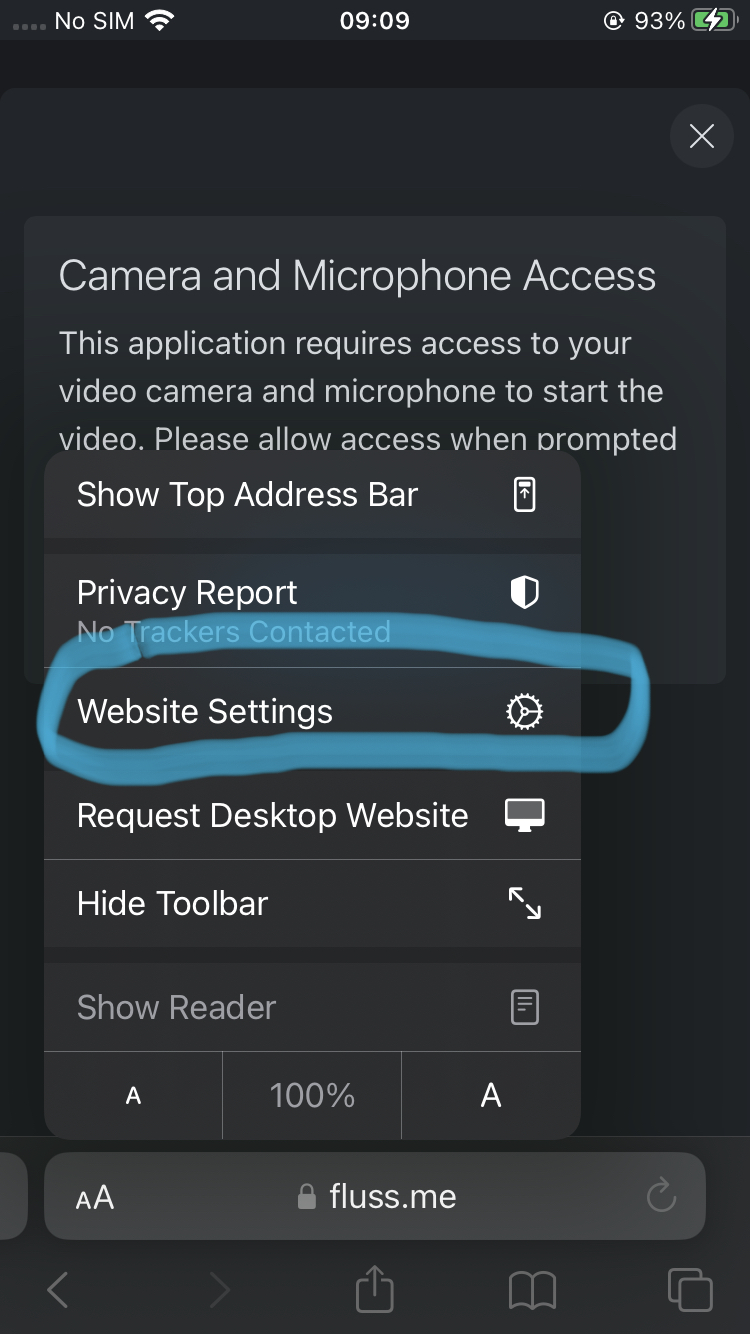
If You happen to decline the permission twice. You need to enable it in the safari settings:

1. Select the Aicon


2. Select 'Website settings'

3. Select Allow for both microphone and camera
Allow always for microphone and camera
5.
Select 'Done' and then scan / type the code again too call the user.

Brave
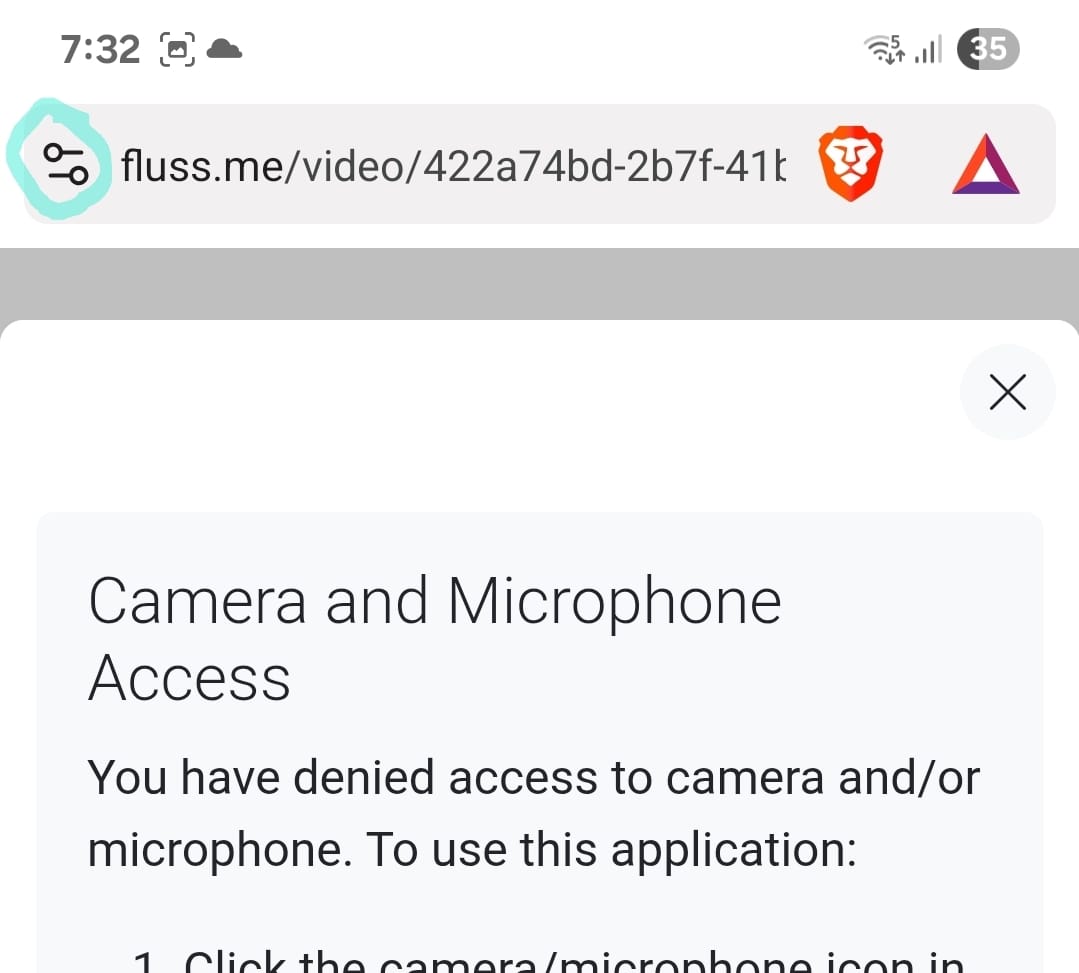
1. Select the nodes at the top left corner.

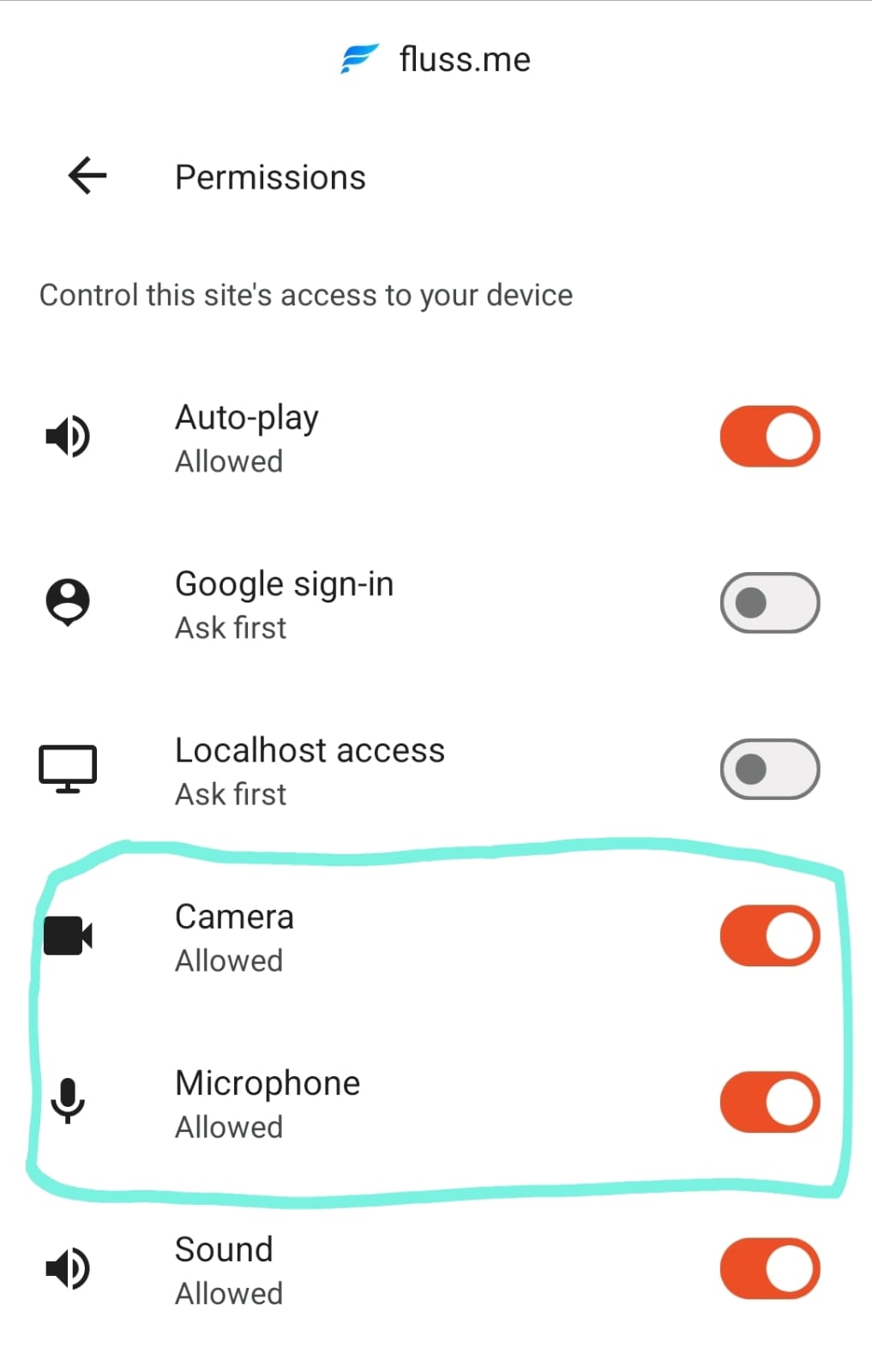
2. Select Permissions
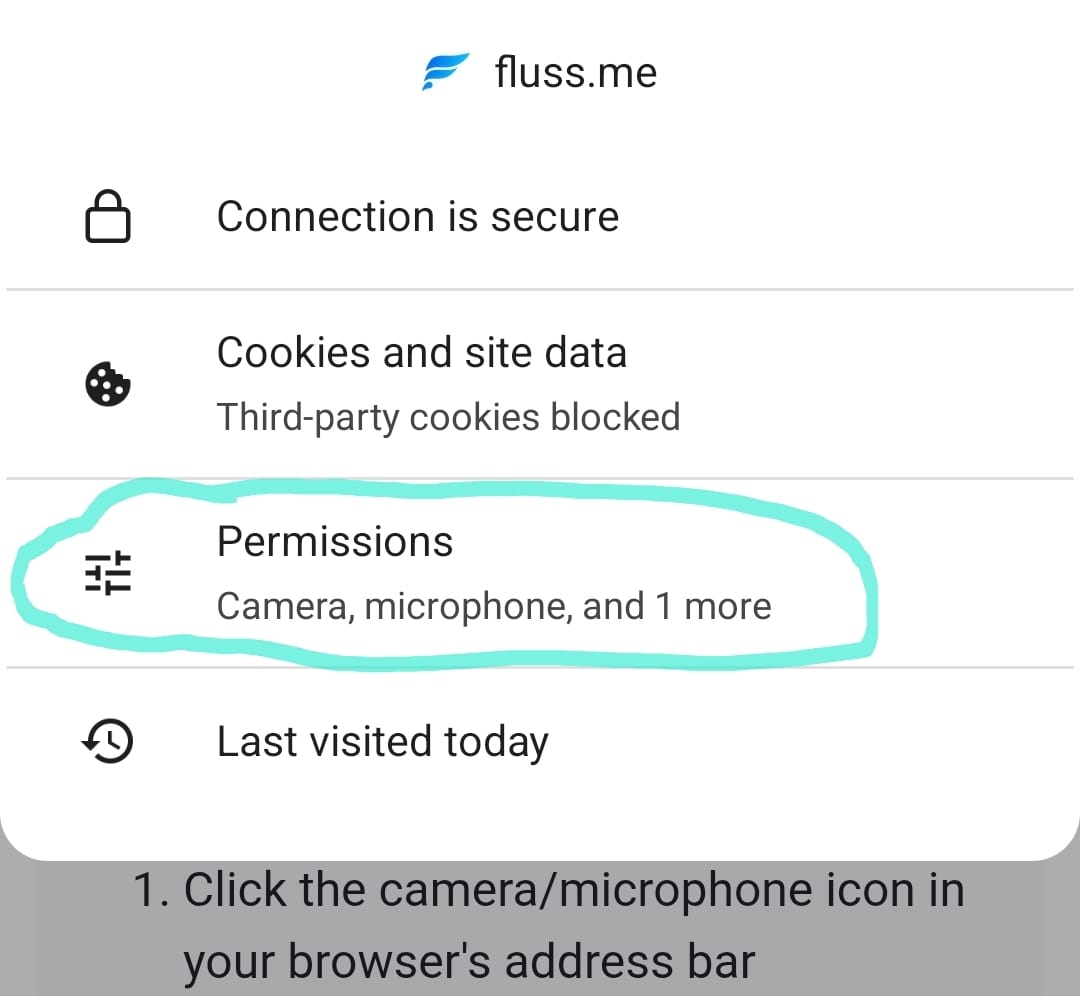
3. Enable Camera and Microphone (to orange) 

Huawei Browser
1. Select the 'lock' icon
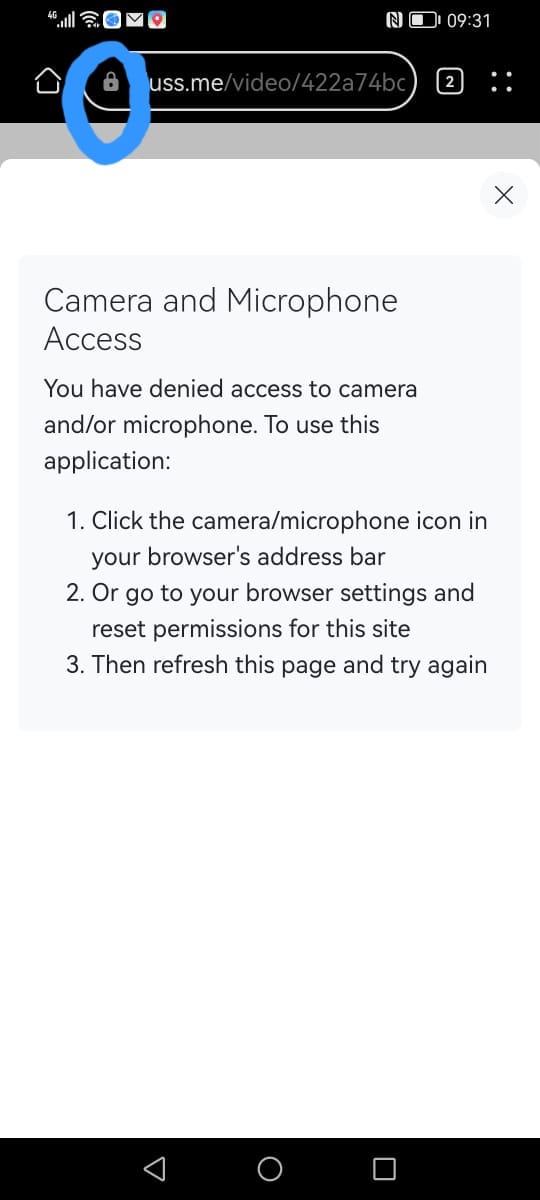

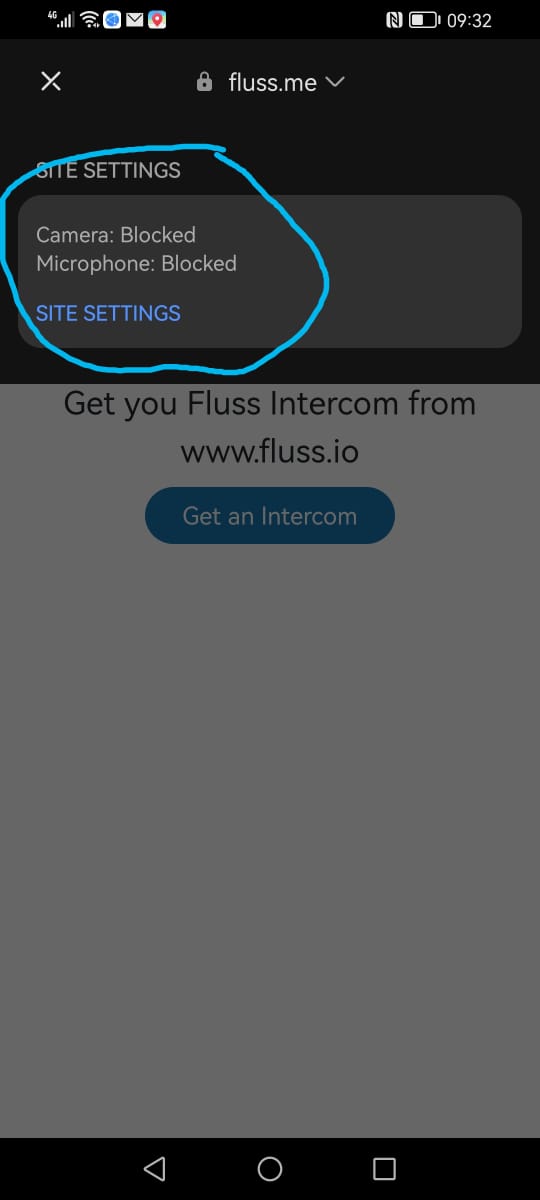
2. Select Site settings

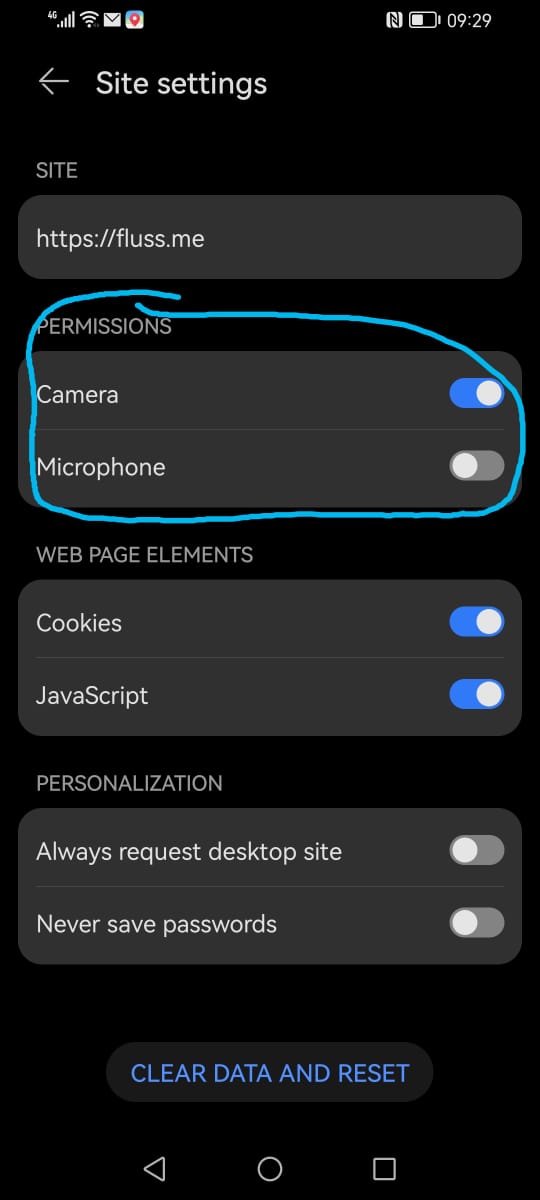
3. Enable Camera and Microphone

4. Scan or type the code again to call the unit.

 
Once you have enabled the permissions, you can now call the unit again by either scanning the code again or type the intercom number on the Fluss.me site.
    • Related Articles

    • Huawei - Bluetooth not working on Fluss

      Step 1: Check Your Permissions Check if your permissions are enabled. Step 2: Where Did You Download Fluss+? If you installed the Fluss+ in the google play store, it can lead to issues (mainly bluetooth). It's highly recommended to download through ...
    • Connecting Fluss+ to Nemtek Wizord 4i Energizer

      * Disclaimer - please ensure that you are qualified to install these products, and ensure that all power is disconnected before attempting any wiring. Please consult a professional if there is any uncertainty or any other devices already connected. ...
    • How to set up Siri shortcuts for Fluss

      Open up your Fluss app, and tap on the devices icon in the bottom left corner. Select the device you want to use with Siri Shortcuts: Then tap on the Add to Siri button: Now tap the "Change voice Phrase" to select the phrase to trigger your Fluss ...
    • How to try out Fluss Device before purchasing

      We have equipped Resellers who will be able to demonstrate how the device works so that you are comfortable and familiar with it. Please also visit our website, https://fluss.io/, and complete a free online training. It will equip you on how the ...
    • How to transfer your Plan/Subscription from a faulty device to a newly installed one

      To transfer your Plan/Subscription from a faulty device to a new, follow these steps: Login to Fluss Admin Dashboard: Visit https://fluss.io/ and login. Once logged in, locate and click on the "Flusses" section. Click on "Manage" next to either ...